Series Navigation
- User Script Introduction
- Using Regular User Scripts in X Browser
- Using Tampermonkey Scripts in X Browser
- Previous: Tampermonkey Script API Reference
- Current: Tampermonkey Script API Examples
TL;DR (Quick Start)
- X Browser: Directly open example script -> Install -> Open
https://www.example.comto test. - Chrome: Use Tampermonkey’s “Install from URL” -> Open
https://www.example.comto test.
Quick Navigation
To help everyone better understand how to use Tampermonkey script APIs, we provide a Tampermonkey script API example. The example contains usage methods for most GM functions. By running the example and combining it with the script code, we can quickly master the usage of Tampermonkey APIs.
Below we introduce the steps to install and run the example script in X Browser and Chrome respectively.
Running Example Script in X Browser
- Confirm that X Browser version is 3.7.8 or above. You can directly open here in X Browser to install directly.
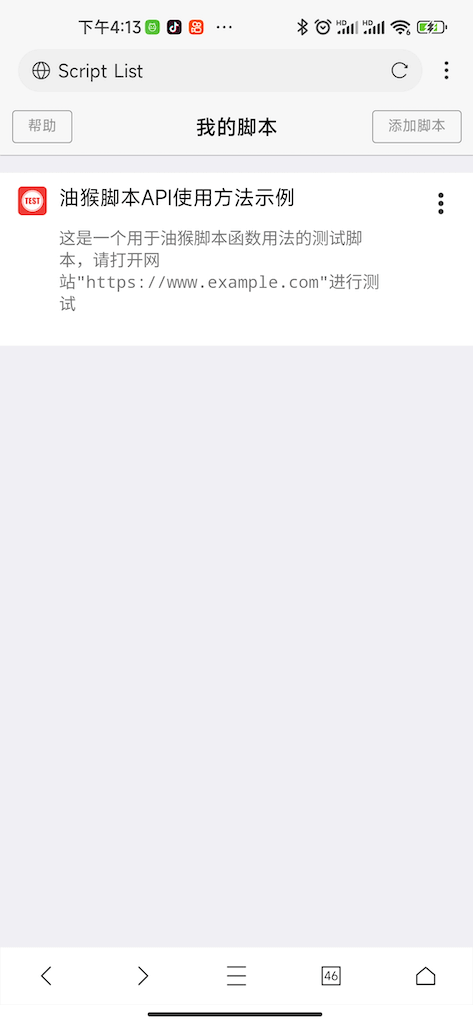
- Open the
https://www.example.compage to prepare for testing.
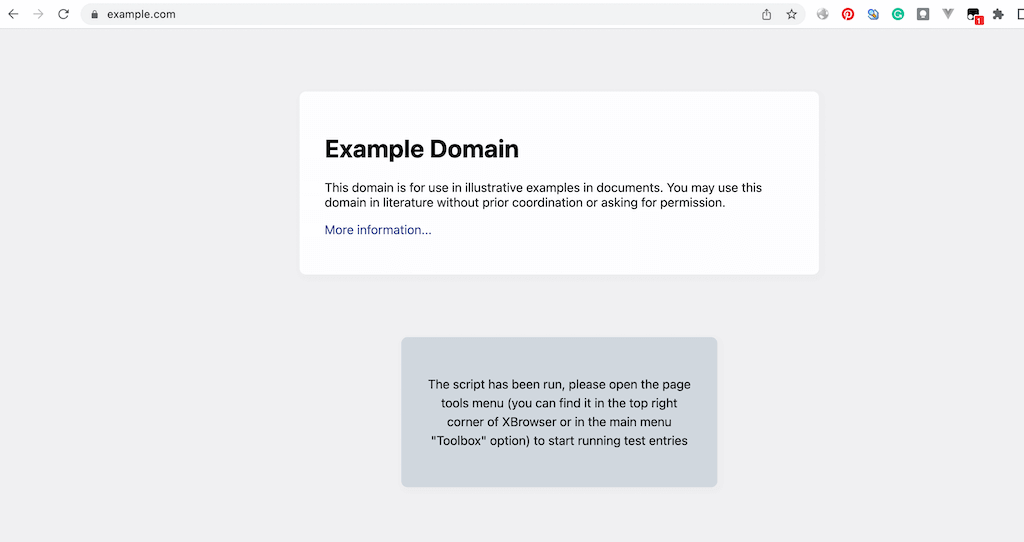
After the script runs successfully, the web page you see will look like this.
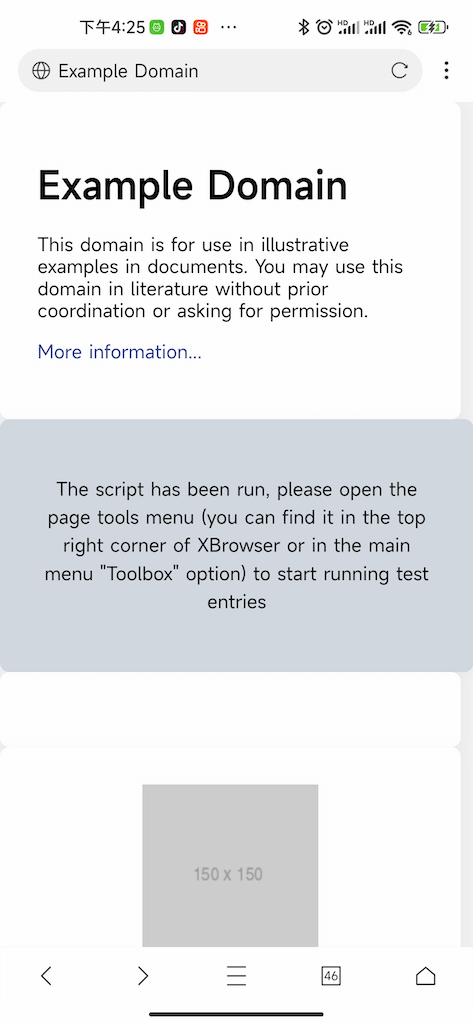
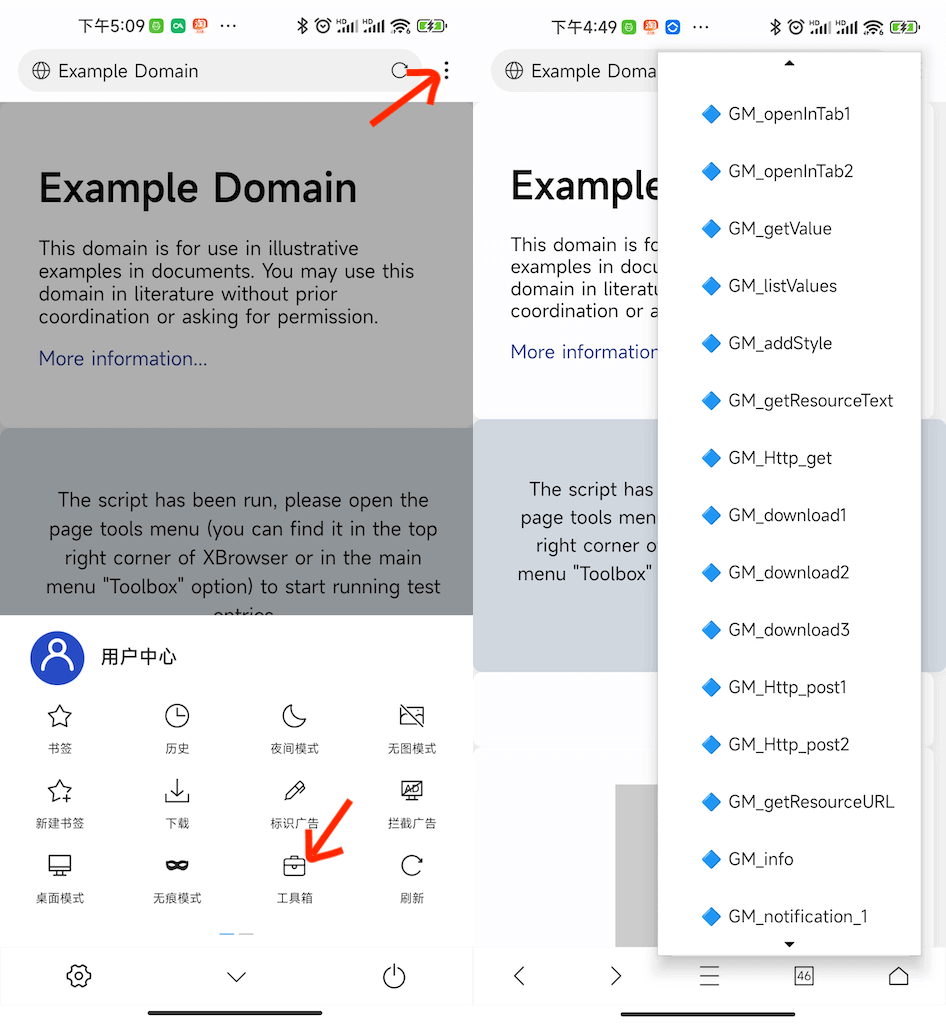
- At the same time, X Browser’s page tools menu will add multiple options as entries for testing each API function. Each menu option corresponds to a usage method of a GM function, so we can easily understand the usage of GM functions.
Running Example Script in Chrome
We assume that you have already installed the Tampermonkey extension in Chrome. Open the management panel, switch to the “Utilities” tab, and select “Install from URL”.
After the script is successfully installed, also open the
https://www.example.compage.
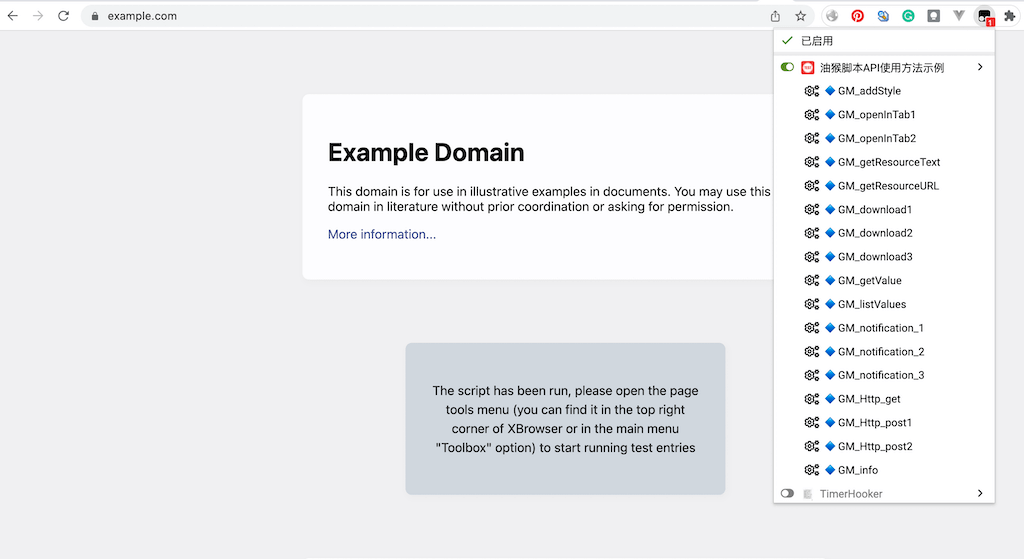
After the script runs successfully, the web page you see will look like this:
- Click the Tampermonkey extension and you will see the test options for the Tampermonkey script.