Series Navigation
- Previous: User Script Introduction
- Current: Using Regular User Scripts in X Browser
- Next: Using Tampermonkey Scripts in X Browser
- Tampermonkey Script API Reference
- Tampermonkey Script API Examples
TL;DR (Quick Start)
- Create Script: Settings -> User Scripts -> Add Script -> New Script.
- Paste Code: Paste the example JavaScript code into the “JavaScript Code Area”.
- Choose Entry: Tools Menu/Long-press Menu/Main Menu/Auto-execute.
- Save and Run: After saving, execute the script from the corresponding entry.
Quick Navigation
After the previous document, we already have a preliminary understanding of user scripts. Next, we will introduce how to use regular user scripts in X Browser through a practical example. Suppose we have such a requirement: we want to conveniently query some information about the current browser and page, such as current window size, current page URL, browser UA, etc. We can implement this function through the following JavaScript code.
(function() { |
Adding Script to Browser
We can add the script to the browser through the following steps and decide how to execute the script.
1. Add Script
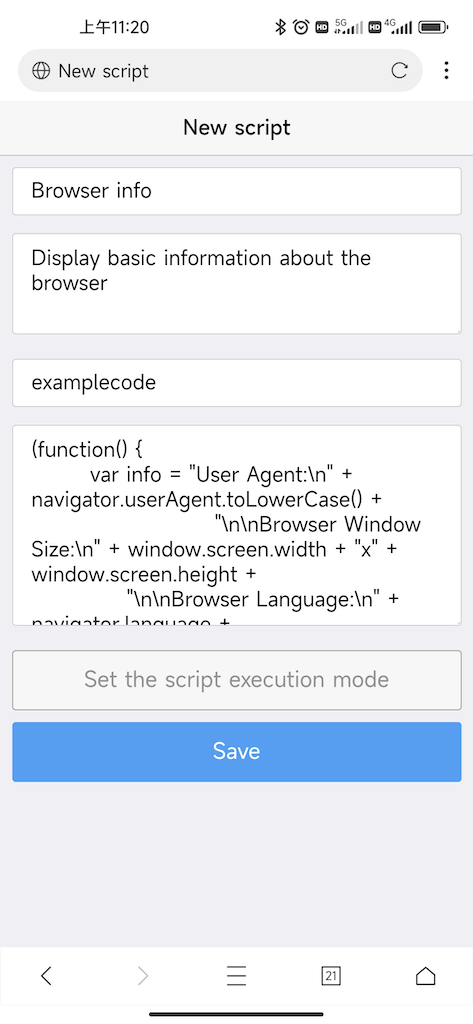
Open the browser, go to Settings -> User Scripts, click “Add Script”, select “New Script”, fill in the script name, description and other information, and paste the above code into the “JavaScript Code Area”.
2. Set Script Execution Method
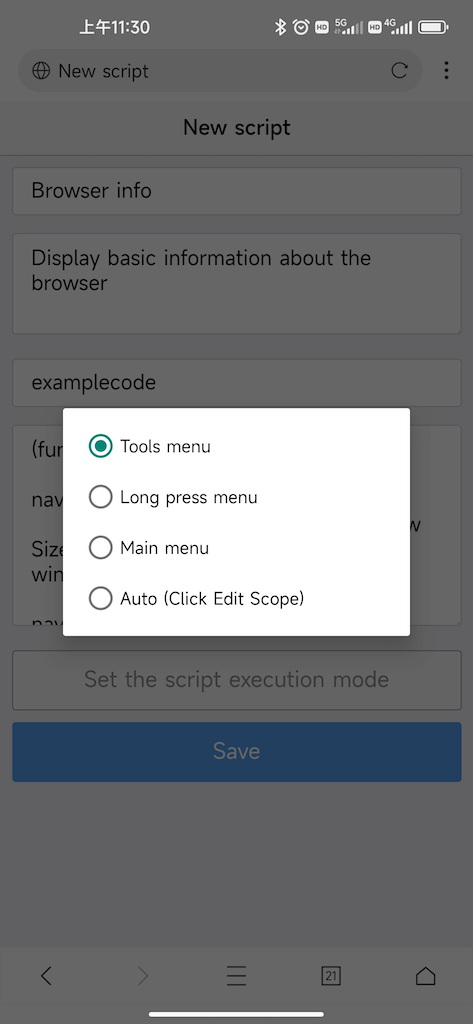
We can set the script execution method according to the application scenario of the script. This example is set to execute the script through the “Tools Menu” (upper right corner of the browser, or opened through the “Toolbox” in the main menu).
3. Save Script
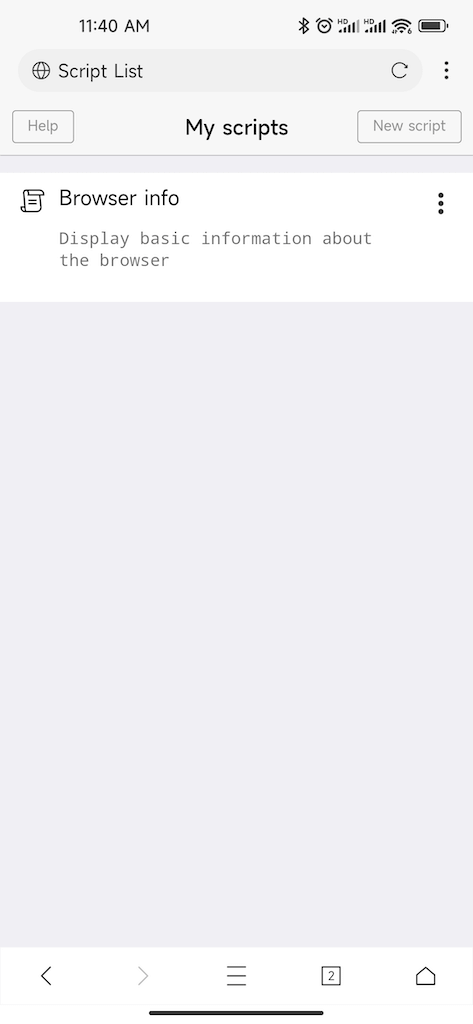
Click the save button to save the script. The script we added will appear in the script list.
4. Execute Script
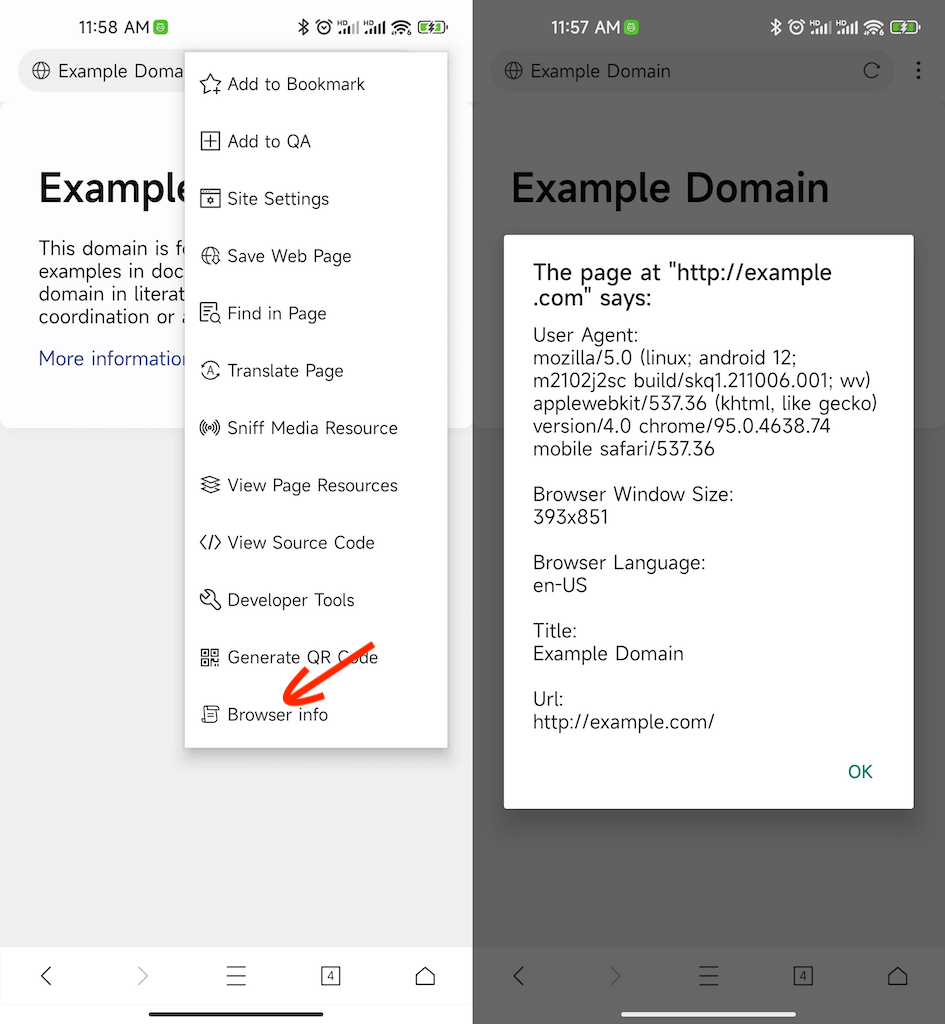
If we set the script execution method to “Tools Menu”, after saving the script, a new entry for executing the script will be added to our tools menu list. The script can be executed by clicking the menu option.
Script Execution Methods
X Browser supports setting different execution entries for regular scripts. We can set different execution methods for scripts according to usage scenarios and user habits.
| Execution Method | Description |
|---|---|
| Tools Menu | Add an option in the tools menu in the upper right corner of the browser as the script execution entry |
| Long-press Menu | Add an option in the browser’s long-press menu as the script execution entry |
| Main Menu | Add an option in the browser’s main menu as the script execution entry |
| Auto-execute | Automatically execute when the page loads, can be set to execute on any page or on specific domains |
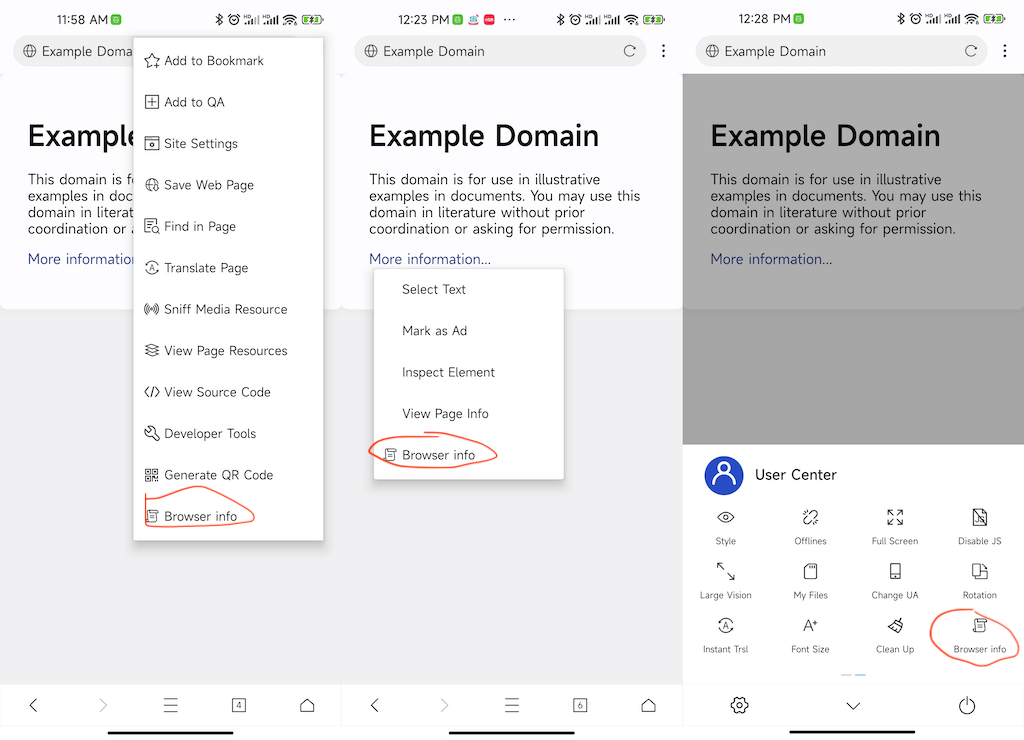
The following figure shows the effect of the example script using different menu options as execution entries.
Common Issues (Troubleshooting)
- Can’t find script entry: Please first confirm which “Execution Method” the script is set to: Tools Menu/Long-press Menu/Main Menu, and the corresponding entry will appear.
- Selected auto-execute but not working: Please check whether the scope (domain/URL) is set, and whether the current page is within the scope.
- Script ran but no prompt: It is recommended to temporarily change the script to
alert("OK")for the most intuitive verification method, and restore the original logic after confirming the execution path is normal.